
Microsoft Authenticator review
 Analysis by GetAllApps
I notice how often account security interrupts an ordinary task: a password is forgotten, a sign-in asks for another check, or a shared device makes me pause before entering credentials. Microsoft Authenticator is useful because it puts those extra sign-in steps in one place instead of leaving me to improvise each time. It does not make every login effortless, but it can make routine access feel more predictable—and encourage safer habits without asking me to remember another password.
Making the extra sign-in step less of a chore
Microsoft Authenticator is a free business-category app from Microsoft Corporation, available to users of all ages. It has been around since January 2015, and its current version is 6.2609.6214. Its scale is substantial: it has more than 100 million installs, a 4.6 average from around 2.8 million ratings, and roughly 116,000 written reviews. Those figures suggest a familiar, widely used tool, though they do not guarantee that every account or workplace setup will behave the same way.
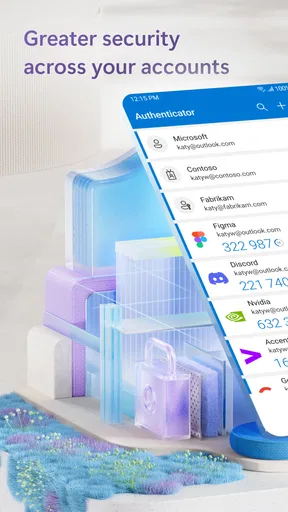
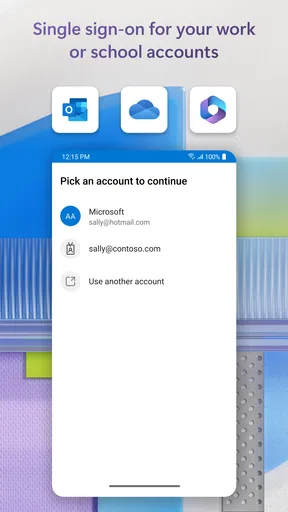
The app’s central value is practical rather than flashy: it helps with sign-ins and account protection. In my view, that matters most when I regularly access accounts that require a second confirmation. Instead of treating every prompt as a fresh obstacle, I can use a dedicated authenticator and keep the process separate from my email inbox or text messages. That separation can make verification easier to manage, especially when I am switching between work and personal accounts.
The real benefit is fewer moments spent hunting for a code or wondering which sign-in step comes next. That is not the same as eliminating all friction. I still need to respond to the account’s security requirements, and some logins may involve more steps than others. But when the app is already set up for the accounts I use, the verification part becomes a familiar routine rather than a recurring interruption.
Start with one account you use often
I would begin by adding the account that causes the most repeated sign-in friction, rather than trying to migrate everything at once. Follow that account’s own security setup instructions, then complete a test sign-in while you still have access to the account settings. This small rehearsal is worthwhile: it shows whether the account is connected properly before you depend on the app during a rushed login.
That test also helps separate two things people sometimes conflate. Authenticator can support a more convenient sign-in experience, but it does not replace the account provider’s recovery process or make account recovery unnecessary. Keep recovery details current and understand how you would regain access if your phone were unavailable. For a work account, your organization’s sign-in rules may also affect which verification methods are available.
One useful setup habit is to add accounts gradually and give each one a clear label if the app offers that option in your setup flow. When several logins belong to the same employer or service, a quick glance at the right account can prevent approving the wrong request. I also recommend trying a sign-in from a second device or browser you commonly use, rather than assuming the first successful test covers every situation.
Where it earns its place in a normal day
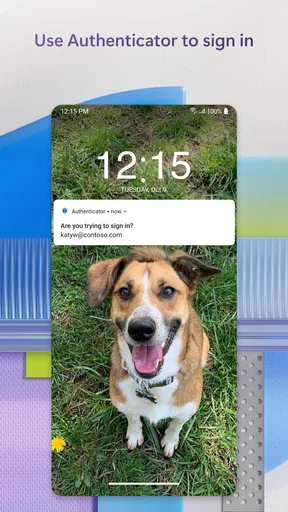
A realistic example is opening a work account on a laptop after a meeting, while your phone is already in your hand. A verification request can be handled there instead of making you switch to an SMS thread, search your inbox, or wait for a message to arrive. The saved time may be modest each time, but the bigger improvement is reducing the chance that an avoidable sign-in interruption derails what you were doing.
It can also be useful when you separate devices by purpose. For example, you might use a personal phone to confirm access to a work account on a home computer. That gives the sign-in process a second step without requiring you to keep a separate physical token nearby. The trade-off is obvious: the phone becomes part of the access routine, so a drained battery, a forgotten device, or a change of phone can turn convenience into a problem unless you have planned for recovery.
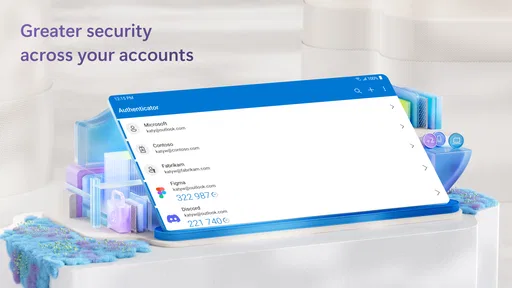
For someone who handles several accounts, the app can reduce the mental clutter of remembering which verification method belongs to which service. That does not mean every service will use it identically. Account providers choose their own sign-in flows, and a login may still ask for a password or another check. I treat the app as a useful hub for compatible account verification, not as a universal key that makes every website behave alike.
What changes compared with codes by text or email
The usual alternatives are receiving a code by text, checking email, or using another authenticator app. Text messages are familiar and can be convenient when a service supports them, but they make verification depend on receiving a message and then moving between apps. Email can create a similar detour, especially if the account you are trying to reach is also the account you need to open to retrieve the code.
A dedicated authenticator keeps that task closer to the sign-in process. In everyday use, that can mean less searching and fewer chances to lose your place. I find that distinction more compelling than any claim that one method is best for everyone. If you already use another authenticator reliably, switching just for the sake of switching may add work without improving your routine. The sensible choice is the method supported by your accounts that you can use consistently and recover from safely.
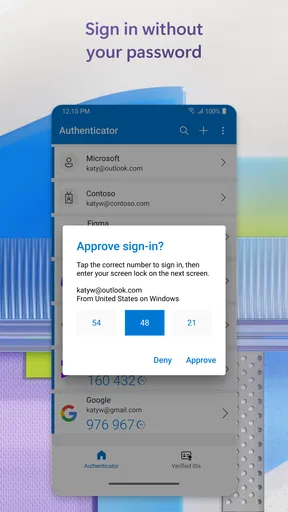
There is also a social and practical consideration: people who frequently sign in on a shared computer may prefer having verification handled on their own phone rather than leaving codes in a shared inbox. That is a workflow advantage, not a reason to approve a request you did not initiate. If an unexpected prompt appears, I would stop and check what triggered it rather than treating every notification as a routine tap.
Friction it removes—and friction it cannot
The clearest improvement is reducing the small delays around verification. You do not have to rely on a separate message arriving at just the right moment, and repeated sign-ins become easier to recognize. For a person who logs in to work services throughout the day, this can make a noticeable difference to the rhythm of their routine, even though each individual step remains brief.
Still, an authenticator app adds a dependency: the device carrying it matters. If you replace your phone, lose access to it, or cannot use it temporarily, you may need the account’s recovery route. Before changing devices, check the account-specific process and make sure you can still access recovery options. I would not wait until the old phone is gone to discover that an account expects a verification step you can no longer complete.
Another limitation is that setup quality affects the experience. A user who adds an account but never tests a real login may discover a mismatch at the worst time. Work accounts can be governed by organizational policies, and personal services can each have their own requirements. The app can help coordinate supported sign-ins, but it cannot override those rules or fix an account configuration problem on its own.
There is a learning curve for anyone who has always relied on passwords alone. The first few verification prompts may feel like extra work, particularly if you sign in infrequently. I would give the setup a little time before judging it: the point is not that every login becomes one tap, but that a safer additional check can become less disruptive once the routine is familiar.
Who I would recommend it to
I would recommend Microsoft Authenticator to people who regularly access Microsoft-linked or other compatible accounts and want verification to feel more organized than retrieving codes from messages. It is also a sensible choice for someone who signs in across a computer and phone and values keeping the confirmation step on a device they control. Its free price makes it easy to try without committing to a paid utility.
I would be more cautious about recommending it as a must-have to someone who rarely signs in, has a dependable authenticator already, or cannot keep a phone available during work. If your employer specifies a particular sign-in method, follow that guidance rather than assuming you can choose freely. And if your main need is a full password-management workflow, this app should not be mistaken for a substitute for a dedicated password manager; its role here is account sign-in and verification.
At the time of writing, the version is 6.2609.6214. For a practical first run, I would add one frequently used account, complete a test sign-in, and then review recovery access before relying on it more broadly. That approach limits setup confusion and makes it easier to tell whether the app genuinely improves your own routine.
My verdict on the everyday trade-off
Microsoft Authenticator is most convincing when it removes repeated little delays without making you forget that account recovery still matters. I like its focused role: it helps make verification a normal part of signing in rather than a scramble through texts or email. The phone dependency and account-specific setup are real trade-offs, so it is not automatically better than a method you already use well.
If you frequently encounter sign-in checks, I think it is worth trying with your most-used account and testing the whole process before depending on it. If you rarely face those checks or already have a smooth, recoverable setup, there may be little reason to change. For the right user, though, it offers a straightforward way to spend less time handling login interruptions and more time getting on with the task that prompted the sign-in.
Pros and cons
Pros
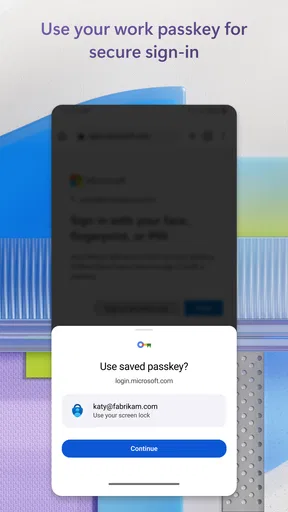
- Supports passwordless sign-in for compatible Microsoft accounts.
- Can autofill saved passwords in supported apps and browsers.
- Offers cloud backup for easier recovery when switching devices.
- Works with many non-Microsoft accounts that use verification codes.
- Can approve sign-in requests with a tap instead of entering a code.
Cons
- Restoring a backup may require signing in to the same account.
- Some organizations restrict which features are available.
- Push approvals require an internet connection.
- Changing phones can require re-registering accounts with some services.
- The autofill feature may not work in every app or browser.


